
Twitter is a unique social networking service known for the characteristic of allowing users to share messages of upto 140 characters only. You might have noticed that celebrities and famous personalities choose Twitter over other services.
Tweeting out the right content at the right time can make a lot of differences for your business. Over the period of time you might have got to know when your followers are active and when you are getting maximum response or feedback. You might wish to tweet only on these peak hours for better reach. But it might not be possible to always be available on those time. Similarly you may like to wish your friends on his/her birthday but each and every time you might end up forgetting it.
So scheduling your Tweets is the best option to address all the above problems. Since Twitter does not have this feature you have to depend on external services. Currently there are many third party services to do this. But the concern is you might not be comfortable in giving write access to some known service. You might not know when they can turn bad. Another problem is their availability, service available now might cease to exist in future.
Introducing After Tweet:
This tool lets you create your very own Tweet scheduler. You can schedule your Twitter messages and send it your followers at any time automatically for free. The tool will entirely be controlled by you. Below are instructions how to get things started.
Create your own Twitter Scheduler – Send Tweets Automatically at Scheduled Time
Step 1: Create a Simple Twitter Application
- Login to https://dev.twitter.com/ with your Twitter credentials.
- Click on
settingPermissions tab. Select read and write. Then click update settings at the bottom. - Click Keys and Access Tokens tab. Scroll down and click create My Access Token. Note down Consumer/API key, Consumer/API secret, Access token and secret.
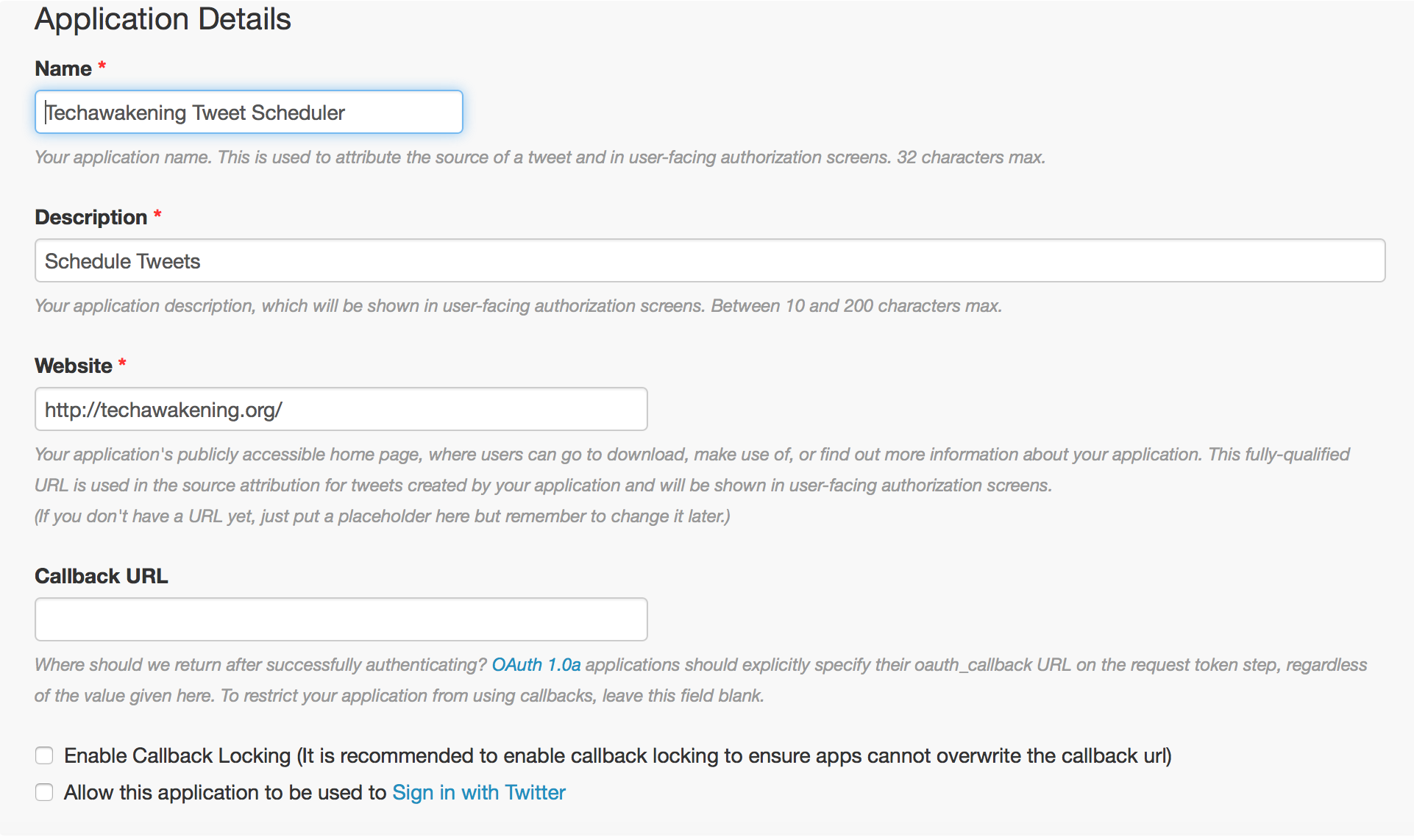
– Give any name to the application
– Give some description
– Website URL can be any site.
– Callback URL can be blank.
– Check terms and conditions and click create your Twitter application.
Step 2: Creating After Tweet Scheduler App on Google Drive
- Log-in to your Google Docs account.
- Now click here to make copy of After Tweet Scheduler V3 app [Updated on Jan-18-2016] Click Yes, make a copy.
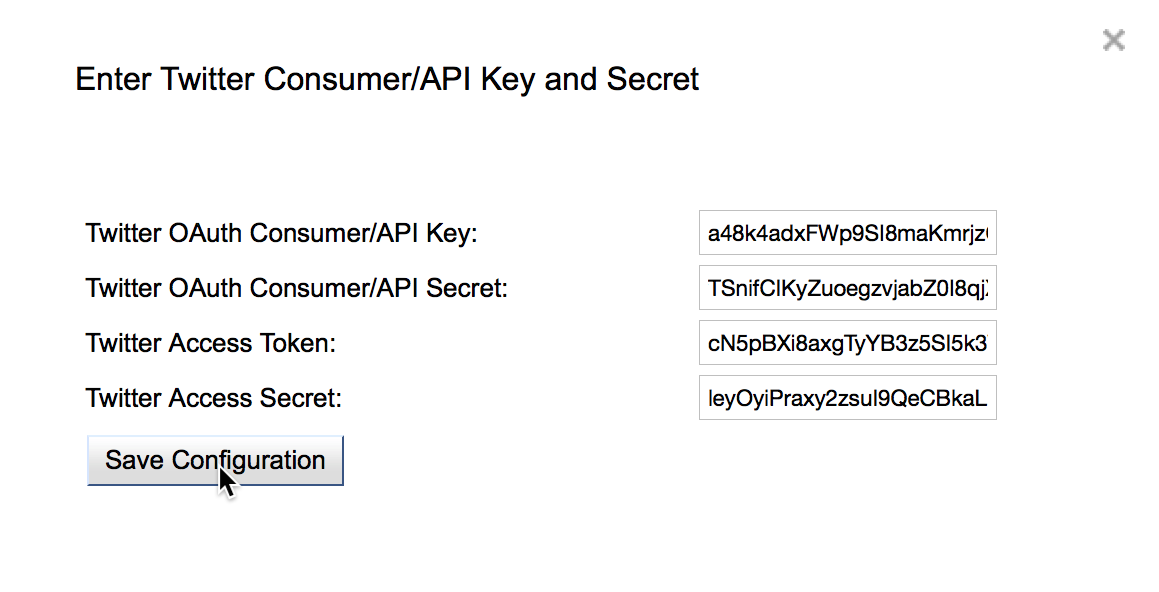
- Wait for few seconds for the menu Tweet Scheduler to appear next to Help. Select Initialize OAuth from it. Now click continue in the authorization popup and finally click allow. In the popup that appears enter the consumer key, consumer secret, access token and secret you noted down in Step 1. Finally click Save Configuration. This is an one time process.
- All the configurations are complete now. Let’s now start scheduling the tweets.
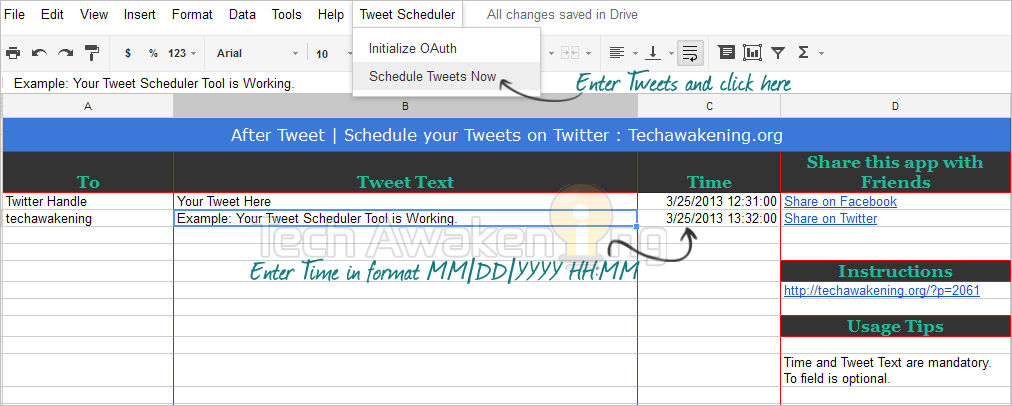
- Go to the Spreadsheet. Enter the Tweet text(Only 140 characters) in column B and enter Time in column C in 24 hours format like MM/DD/YYYY HH:MM. Eg., 3/30/2013 15:31. Enter twitter handle of the person whom you want to address in column A it’s optional though, whereas Tweet text and Time are mandatory.
- Once you are done. Select Tweet Scheduler-> Schedule Tweets Now. All your Tweets will be scheduled as per the time you have given and will automatically be Tweeted from your profile at appropriate time.
- Note: Currently you can schedule up to 20 tweets per app.
- Make sure you set correct time zone from Tools-> Script Editor-> File-> Project properties. By default it’s set to CST.
Step 3: How to use the Application
So, start using the After Tweet scheduler app and get productive. Reach out to the people at the time when it matters the most. Did you like the App? Stuck at any of the step? Feel free to drop in your questions and suggestions.
Hi,
I see that you are using scriptdb to store and schedule the trigger based on time. Just another idea, can we skip the whole scriptdb idea and directly post to Twitter from Drive-Spreadsheet. Can you please help me in making that possible.
Regards
Raj
Raj,
Thanks for dropping by. Went with ScriptDb because there was lot of advantages when it comes to querying for data.
As far as directly getting content from Spreadsheet you can search for the time match across the column C if there is a match you can get the corresponding entry in column A and B and post it to Twitter.
Here is an example: http://stackoverflow.com/questions/10807936/how-do-i-search-google-spreadsheets
Hope it helps 🙂
Hi,
Is this timezone specific?
Matt
Yes, but you can change it to any time zone from project properties.
Hi – the test tweets I did appeared as ‘undefined’ on my timeline – any ideas?
Jon
Twitter API was updated recently that might be the reason. Will take a look. Adding this in my to do list 🙂
Jon,
Updated the code to be compatible with Twitter API 1.1. You can try now.
Can I use the scheduler to post a picture?
Ryan,
Currently it does not allow to post the image itself but instead you can schedule links to the images.
Will try to add image scheduling feature if feasible. Cheers!
Thank you for taking a look at that for me. I would love to be able to post pictures with a scheduler and yours is a great program.
In the popup that appears enter the consumer Key and consumer Secret you noted down in Step 1
NOWHERE DID YOU STATE IN STEP 1 TO WRITE DOWN A KEY,
COME ON MAN
Where do I find this key??
Duane White,
I have mentioned it in the last point of step 1: “Click OAuth tool tab. Note down Consumer key and Consumer secret.”
Anyhow visit https://apps.twitter.com -> Select your app-> API keys tab. You will find the keys.
Any way that we can get this extended past 20 tweets scheduled? And what time zone is this tweeting off of?
Chris,
Yes very much possible, requires bit of code customization though.
Currently in IST you change timezone from Tools->Script Editor->File->Project Properties to suit your need.
Hello,
Is this the updated version as of June 3, 2014? Thanks
Robert,
From logs the last update was on Feb 21, 2014. Works with latest Twitter API v1.1 so you can go ahead and use it. Cheers!
Is this script still working? Because this didn’t work for me 🙁
Topan,
May be I should cross check and get back to you!
How can I trigger scheduleTweets every five minutes. At the moment I have to run it manually each time i update times.
Select Resources-> Current project triggers-> Add new Trigger. Select scheduleTweets, set events to time driven. Finally set time you want. Hope it helps.
Do give a like/share if this article helped you out 🙂
Yasin you can actually ignore my previous comment. Have added a new feature of auto rescheduling tweets whenever the tweet or time is updated. So now on you need not run manually.
So start using the latest version of After Tweet and follow the steps again.
Any way to automate more than 20 tweets? For an art project I’m looking to automate ~10000 tweets. What areas of the code need to be changed?
Best,
`~a
That’s a big number. Script may not be able to handle that many. Increase the cell range in code.
Twitter Limitations: https://support.twitter.com/articles/15364-twitter-limits-api-updates-and-following#
Any way to fix this? http://i.imgur.com/VK2pXla.jpg
Fix will be available soon. Thanks for reporting!
OK, thanks 🙂
Any progress? Sorry for nagging you 😉
V2 available now. Had to made quite a lot of changes/workaround. Would appreciate if you could spread the word. Like or share or tweet would be great 🙂
You, my kind sir, are a life saver! 🙂 It’s a little bit late, so I’ll test it and spread the word tomorrow. Thank you! 🙂
Now everything’s working wonderfully! 🙂 I’ve got two questions, though:
1) Let’s say I’d want to extend the area above 20 rows so that I could leave the already sent tweets in the spreadsheet and just add new ones. Would that cause any problems? Am I correct thinking that in this situation the script would not delete the old triggers? Are there any problems I could encounter in this scenario?
2) Is it possible to replace the “TO” column with the “in_reply_to_status_id” parameter (http://goo.gl/RKJUin) so that the tweets could exist as valid replies?
I figured out the second part so you can skip answering that one 😉
Can you better explain to me how to allow for more than 20 tweets?
Thanks!
Great tool, thanks for sharing. I got it to work when I manually typed in a couple of test tweets, but can’t make it work when I cut-and-paste tweets and times from Excel. The date is still in format mm/dd/yyyy hh:mm:ss and is actual dates, not equations. The tweets are all the right length. I’ve thought of a few options which I’ve tried testing:
* it doesn’t respond when new data is entered (I tried rescheduling, still no luck)
* it doesn’t like having more than 20 tweets pasted in the space below (deleted the extras, no luck)
Any idea what the issue might be?
I can’t get it to work, got stuck on step 2, Run AUTHORIZE. I Do everything exactly as it says, but when i go to tools -> script editor -> Run -> AUTHORIZE, it says “Authorization is required to perform that action.Dismiss” on the top of the page. Any ideas?
As shown in the screenshot there will be popup which you have to click continue button. Just checked it’s working as expected.
The popup never showed, don’t know why. My workaround was to debug the function, and then the popup appeared and granted access. Now the problem is that when I run AUTHORIZE, it gives me the following message:
“OAuthConfig API is deprecated.Collapse
File: Techawakening_Twitter_Scheduler Line: 59
The API has been marked as deprecated which means that the feature should be avoided and may be removed in the future. Consider using an alternative solution.
Method UrlFetchApp.addOAuthService is deprecated.Collapse
File: Techawakening_Twitter_Scheduler Line: 58
The method has been marked as deprecated which means that the feature should be avoided and may be removed in the future. Consider using an alternative solution.”
Double checked my Consumer Key and Consumer Secret, but still I can’t get it to work.. any ideas?
I finally got it to work, thanks a lot!! Awesome tool!
Good to know! Do spread the word please.
And if possible share with us what was the issue and how you fixed it. Should be of help to others.
Hi,
I’ve been trying to make this work for me, but struggling. I don’t get the pop up after I enter the consumer key and secret.
Any help would be appreciated.
Thanks !
Let me triage more and let you know.
Hi,
How did you get it to work? I have same problem.
Thanks.
New version has been released. Please start over with the instructions, it should work now.
Finally the popup is showed after I try to debug that function (AUTORIZED). I hope it’s help for anyone who stuck on step 2. Thanks for this tool! 🙂
My pleasure. Please do spread the word!
Any one have updated and working copy to share ?
Lets me cross check and get back to you. Thanks!
Looking for an updated and working version as well. Great tool, anyway you can schedule more than 20 per app?
Will try pushing a fix this weekend. Thanks!
For personal customizations, please write to admin@techawakening.org
Great work indeed Shunmugha Sundaram, but am getting stuck at OAuthConfig. Since, OAuthConfig is deprecated, am unable to authorize it in the google docs and am getting this error:
“Script is using OAuthConfig which has been shut down. Learn more at http://goo.gl/IwCSaV (line 58, file “”)”. So please help me in migrating from OAuthConfig to the OAuth1 library.
Am not a coder, just a beginner/learner, so please give me instructions on how to migrate. I already checked: https://developers.google.com/apps-script/migration/oauth-config?utm_campaign=oauth-appsscript-315&utm_source=gadbc&utm_medium=blog but that is confusing to me.
Arun,
Thanks! Let me check on it over the weekend and let you know. By the way you have a good blog 🙂
Thanks Shunmugha Sundaram for the compliment! 🙂
Will wait for your reply, thanks again!
Arun
Arun,
Version 3 has been released. Instructions have been updated as well. Please try now.
Hi, is there a solution for this? Having the same problem
Article updated with new instructions. Please try now.
Shunmugha, the script is now broken because it depends on OAuthConfig which is no longer used (see: http://goo.gl/IwCSaV). Any chance of an update? I would love to be able to use this. Thanks!
Working on it. Will keep you posted.
Elan,
Version 3 has been released. Please discard the old sheet and start over with instructions and let me know if it worked.
I have changed the time zone, but it the tweet is not happening to the current IST i mention.
In script editior ->FILe-> Project properties i set time to IST
But in script editior ->FILe->Script properties if i see time is as per the earlier time
Please tell me the exact line to change the code to increase the limit of 20, tried multiple thing but no gain.
Does this script to schedule tweets still works? Also, from the last comment I read that the schedule limit is only 20, is that true?