
Consider John is a project manager of a company and has to create weekly reports covering various areas of the projects say revenue, resource etc., He uses Google Drive to manage the documents on the cloud so that he can jointly create reports along with his team mates.
He uses a standard folder template/hierarchy for his weekly report and wants to duplicate this folder structure every week. So he tries to make a copy of the folder in Google Drive but he’s unable to do it. Why because that feature is currently not supported.
All he can do is manually recreate entire structure which is a monotonous task or use desktop app. Have you faced a similar situation? Want an easier solution which works online from any browser? Here’s how.
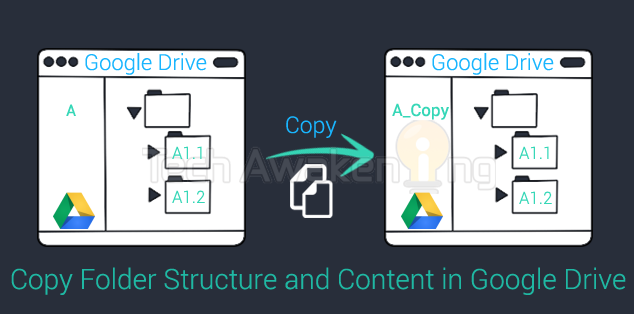
Copy Folder Structure and Contents in Google Drive with Google Script
Meet GDrive Copy Folder script which lets you make copy of any Google Drive folder, duplicating the structure along with the contents in it. Below are the steps to get started.
1. Finding ID of the Folder You Want to Copy
- Login into your Google Drive account.
- Click on the folder you want to make copy of.
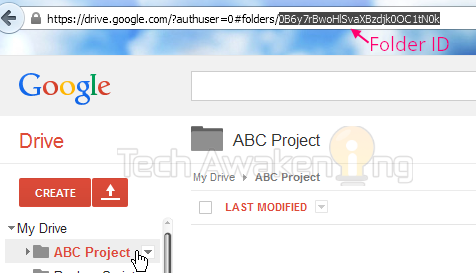
- From browser address bar note down the unique ID which comes after folder/.
Example URL: https://drive.google.com/?authuser=0#folders/0B6y7rBwoHlSvaXBzdjk0OC1tN0k
Folder ID: 0B6y7rBwoHlSvaXBzdjk0OC1tN0k
2. Installing/Using the Script
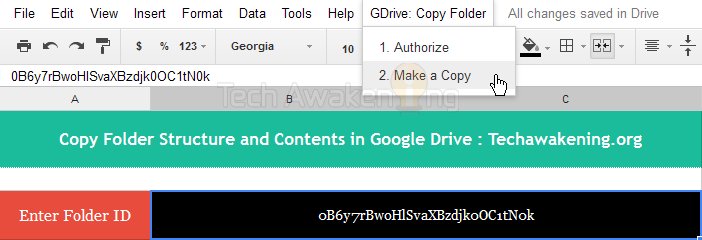
- Click here to make a copy of the project (Version 2). Next click Yes, make a copy link
- Click GDrive: Copy Folder menu next to help. And select Authorize. Click OK then Accept. This is a one time activity.
- In B5 cell copy, paste the folder ID which you noted down in previous step.
- Finally select Make a Copy option from the menu.
- Wait for few seconds. When the process has completed you will receive a success message.
- Now check your Google Drive account, a new folder would have been created with _copy in it’s name. Example: ABC Project_copy. If you wish to, rename it by right clicking.
You can easily extend this script even to schedule/automate this process so that copy of a particular folder is created at regular intervals. Please do drop in your comment if you want to know how.
Thanks alot for making this! It really helped when I needed to transfer folder ownership across domains!
Jayden,
Really good to hear that 🙂
I was using it for the same thing, but I have just over 10GB to transfer and it simply ends up failing because there is a maximum run time that google allows.
This is brilliant! I have wanted a tool just like this for so long and was super excited when I stumbled upon this.
One problem though…there is a limit on the size of the folder or how many docs it will copy within a folder. I know this may sound crazy but I have a folder with 500+/- docs then 20+/- subfolders where those docs are sorted. This process would not let me copy that big of a folder which is understandable.
I will definitely utilize this for other projects but would you happen to have another script that is capable of doing larger projects such as mine or point me in a direction for something that would work?
Thanks for this and any help you could provide?
Whitney,
You are most welcome 🙂 Thanks for the feedback.
Even another user mentioned about this. To be frank I haven’t tested it out with huge folder having lot of files. But surely will see what could be done to address this. Problem is that Google sets limits on how many calls can be made per day.
If possible share with me a folder which has large content in it. Will run the script and test when it is failing. Email Id: skyisdelimit@gmail.com
I tried the script with a large folder of about 1,800 files and I received an error. It alluded to there being too many calls to the service, and it suggested implementing a sleep time between requests. (Sorry, I didn’t copy the exact error text.) Have you seen this before, and can you implement a fix so the script works with large copy operations? This is an important use case, I think, because one might want to avoid downloading all the files to the local computer to do the copy via the Google Drive sync app. Thanks!
Chris,
Thanks for the feedback. Agreed, an important use-case to address. Understand what the error is, it’s because the API calls are made too frequently. Can you tell me how many files were copied and line number at which error occurred(In error popup it will be available)
Problem is I don’t have folder with large files in it. If possible share with me a dummy folder with huge content in it. I will test with that. Email: skyisdelimit@gmail.com
Thank you so much for this script. It’s exactly what I am looking for.
I am trying to copy recordings (original music), and I received an error that exceeds the maximum file size. Is there any way to increase that?
Thanks either way.
Josh,
Thanks buddy! How big is the file actually?
Hi. I was not able to copy files over a 200 mb in file size.
Fantastic! Thanks!
You are most welcome. Please spread the word 🙂
Hi, this script is just what I was looking for, for some of our Drive users. They are only interested in copying an singke folder (with subfolders with documents); so they even don’t need to copy the folder ID if we set it up for them.
A question tough: is it possible to convert this to a script that ‘stands on its own’, i.e. not part of a spreadsheet? Maybe it is possible to copy the script to the drive folder that you want to be copied, so that the script automatically will copy the folder it is in (no need to enter the folder ID). Yust a suggestion. We can work with it as it is in a spreadsheet. Thanks for sharing!
Another tip: documents that are copied in this way will have ‘copy of ….’ added in front of the original file name. Users will have to delete ‘copy of …’ on each individual file. Maybe it is possible to copy the files without adding ‘copy of’ to their filenames?
Leendert
Leendert,
Thanks a lot for the awesome feedback. I opted for Spreadsheet is because it provides you easy to use interface.
– If you don’t want users to be entering folder ID you should hard-code it in code so that users need to just authorize and run the script.
– It is possible to find out folder in which the script is. But one needs to manually start the script because it needs user authorization at-least once. After which we can set time interval and automate the execution. So copy of the folder will be created at time intervals you mention. Requires some work.
– As far as removing “copy of” from file name, I can immediately do the change for you. Please write to admin@techawakening.org for support, shall let you know the price
Will cost you just $5.Please do spread the word about this tool. Would appreciate a share/like 😉
How long will it take to get the script without the _copy after the original file name?
Peters,
If you want customization please write to admin@techawakening.org
When I run the script
Cost me a message:
Sorry, Error Occured: Exception: Service invoked too many times in a short time driveWriteVolume rateMax. Try Utilities.sleep (1000) between calls
Please, do you have an idea overcome this problem?
It’s because too many files were being copied in a short span of time. Appropriately how many files where copied before you got this error?
After copying only three files only have been rising error!
I have a perfect disc of songs not implemented because of this error
Can anyone tell me what the maximum size of the folder can be?
Lizette,
This is no limits on size as such but there’s limit on number for writes performed.
Ref Quota Limits: https://docs.google.com/macros/dashboard
Hi. I’d like to forward about 200 emails. Can you help me?
Sure! Please drop an email to admin@techawakening.org
[…] How To: Copy Folder Structure and Contents in Google Drive? […]
This would be such a great solution for me. Unfortunately, Google says that this app isn’t authorized. I get almost through the process, but then it doesn’t work. Can you help?
m
Did you run authorize and then clicked accept in the pop-up that comes up? Please see the video demo at the end to get a better idea.
This works great but it leaves the “files” in the root directory and added them to the folder structure. Is there any way to remove them from the users Google drive root?
Thanks for reminding! Actually had a fix ready for that but forgot to push it in. Will do that asap. Meanwhile do spread the word on social networks. Would appreciate it.
Great! Thanks Will do. Great app
My pleasure 🙂
Any luck getting this feature added?
V1.1 released, this issue has been addressed.
Hi
This looks like a great script.
I am trying to make copies of folders. Is there a way I could convince my boss it’s safe to use this script? Would save me a whole load of work if I could!
Thanks!
It’s absolutely safe. You can have the code inspected by anyone with IT knowledge, it’s open sourced 🙂
I ran the script with a folder and it copied it, but it also put the files in My Drive. When I try to remove them from that location by deselecting My Drive and leaving the Copy folder, they are deleted from the both locations. Any thoughts?
Please refer my previous reply: http://techawakening.org/copy-folder-structure-contents-in-google-drive/2846/#comment-23581
Fix coming soon 🙂
New version V1.1 released fixing this issue. You will not face this problem anymore. Cheers!
EPIC! Thanks a ton!
Pleasure is mine. Do spread the word!
Few minor updates on the way.
Good application however…
I am using your V1.1 and when the process is done, the file is created in the My Drive folder. Is there a way that it can create the file in the same folder as the folder that is being copied?
Wait, and all folders within the folder have _copy against it as well?
Why?
With V1.1, you should not be seeing any file being created in My Drive Folder.
Thanks for the tool, but I keep getting the error below…
I have tried copying the address from the address bar and also by “getting the link”. I get the same error message. Thoughts?
“Sorry, Error Occured: Exception: No item with the given ID could be found, or you do not have permission to access it.”
Please make sure it’s the folder ID which you are copying.
I added a patch to make the “_copy” text that gets appended optional (or changeable) and to allow you to change the name of the base level folder. Is there a place to submit patches so that work can be shared?
Awesome! Thanks for coming forward 🙂
Please leave the project URL in comment section.
Here’s the link to my version of the sheet which allows you to change the text appended to new folders and to change the name of the root level folder that gets created.
https://docs.google.com/spreadsheet/ccc?key=0AqUL9LRgyOtHdHByMGRiSndpdHpLbEJ3a1JiRVBQX0E&usp=sharing
Tom
Thanks a lot!
Good, thanks a lot. I found a little problem. Files are rename with copy_name of the file. Its possible to take identical name like original?
Thanks and good job
Send an email to admin@techawakening.org for support.
Works as described. Thanks so much!
Welcome! Do spread the word 🙂
Great Job! I am however still seeing the folder I am copying show up in the “My Drive” folder and not the folder i am running the script from.
Any thoughts?
Thanks!
Dale
Thanks! Yes they will be created in the root. You can just drag and drop or move to the destination. Do spread the word.
Yes, but then i will have to change the permissions on each folder. I thought the permissions stayed intact after the initial copy.
Is that correct?
Any thoughts on the permissions aspect? If the permissions would stay the same that would be great!
Dale
Permissions won’t stay i believe 🙁
Hello
I have tried using this but I think there must be a significant limit on the size of the files. We have a number of video and audio files we are trying to copy but keep getting error messages.
Please let me know if you can help.
Thanks
Hello
I have tried copying the files but there seems to be a limit on the sizes. I am trying to copy audio and video files.
Thanks
Great script!! Only thing is when I run it I get:
“Sorry, Error Occured: Exception: No item with the given ID could be found, or you do not have permission to access it.”
I know I cut/pasted the folder ID correctly, though it was a LOT longer than the example you give if that might matter in terms of the given ID being found (though it shouldn’t).
Does this error then perhaps mean that there is a doc buried in the folder somewhere that I don’t have the authorization to copy?
I tried it however with a folder that I definitely have full ownership of, and still got the same result.
What’s going on?
THANKS!
Please make sure it’s folder ID and not file ID. If possible I will try to remote assist you.
Thanks for the tip. Anyway, for our purpose it will be much more useful if only the root folder contained the _copy suffix.
Please write to admin@techawakening.org for customizations you need.
Will this work with folders that I have not created but that have been shared with me?
Rebecca
It will work with any folder you have access to.
This is fantastic. The main folder I needed to copy was too large and timed out, however I was able to go in and copy the main subfolders quite quickly. Thank you very much!
Any time. Please spread the word. Would appreciate like or tweet. Thanks!
Thank you so much for this script! This works great in my entire team will use this on a daily basis. We are kind of new to the Google drive as far as using it for our business and not being able to copy folders is one of the limitations that was nearly a deal breaker. I honestly can’t believe how this is not a built-in feature with Google. But perhaps it’s not a built-in feature so that innovative organizations such as this can build a script to solve the people’s problems, hence building the community, hence building dependencies and friendships.
Thank you to all that worked on this and I look forward to using many more of your scripts.
Pleasure is mine. That’s so nice to hear feedback’s like these. Please do spread the word via Facebook or Twitter.
If you found my app useful, buy me a coffee by donating what you wish via PayPal 🙂
This is a great piece of work. Thanks so much for sharing!
It’s my pleasure. Please do spread the word.
This script seems to work on files that are NOT SHARED. If folders containing SHARED FILES are copied there will be no preview. If folders have files that are NOT SHARED there will be a preview.
This is something new to me.
Tested it last night. It’s also the same if one uses the Refractive script to copy folders.
Will this script be updated to Driveapp API when Doclist is deprecated?
Version 2 has been released. Do test and let me know.
This script has now officially broken.
https://code.google.com/p/google-apps-script-issues/issues/detail?id=5017
Yep, will try to push a fix asap. If you already have a fix, feel free to drop in. Thanks!
Hello,
It’s fixed. Give a try now and let me know if it worked. Thanks.
To Donate : http://techawakening.org/go/donate 🙂
I really liked this, but unfortunately Google have now removed the DocsList method and replaced it with DriveApp. This means you can no longer use getFolders(path) to get the subfolders so the script errors.
Ya, thanks for notifying me. Need to push in a fix.
Thanks for building this, I too am encountering the same error. If you manage to get it fixed, it’d be great to use as I have a need to copy the entire contents of a folder.
Thanks again!
Sure. Fix coming up soon.
Version 2 released with fix. Lots of effort have go in to get this fixed 🙂
If you think I deserve a coffee, donate here: http://techawakening.org/go/donate
Thanks, I finally got around to trying this out tonight.
I was trying to copy a folder of 155 images, each one between 500k and 100k. It got about half way through (76 images) before spitting out this error message: Exceeded maximum execution time
I noticed it did take several minutes (maybe around 10?) to get that far, so I’m not sure what the actual time limit Google specifies.
In any case, thought I’d let you know!
Thanks for the info. It looks to be max of ~5 minutes.
Hi! I just wanted to check on the fix 🙂 Any rough eta?
Fixed, give a try and let me know.
Hi Shunmugha Sundaram!
First, I want to tell you thank you for your script which really seems to be amazing!
It could really save my life (as a lot of people as I see) so if you succeeded to fix it, it would be soooooooooo great 😉
Please, let me know about the progress.
Thanks!
Sami,
Copy the new version 2 and give a try. It should be fixed. Lot of effort has went into it.
If you think it’s worth it, do help me buy a coffee: http://techawakening.org/go/donate
Thanks so much for producing this, it’s going to save me so many headaches!
My pleasure. Do spread the word.
Thank you for this! I see other users in comments reporting failures with large datasets, but they appear to be using V1? I am also trying to copy a large file structure, but the error I am getting at the top of the page is “Exceeded maximum execution time.” The Details link is unhelpful.
Is there any way I can get this to run successfully?
(I’m a Linux admin who works with Bash and Python regularly, so I’m not afraid to dive into code.)
Thanks!
Way around this is to monitor execution time and when it reaches threshold time, set script to be in sleep state and resume after cool off period. Hope it makes sense. Thanks!
Hey Shunmugha,
I have the same issue whith the “Exceeded maximum execution time.”, but i’m not familiar with programming.
Can you tell me where and what I should write on the code to insert the sleep mode?
Thanks!
This should be of help – http://stackoverflow.com/questions/11142109/how-to-use-utilities-sleep-function
Hi Shunmugha,
Where would i put this script to make it stop or slow down Exceeded maximum execution time?
Super useful. Thanks
Welcome. Please do spread the word!
This was really helpful! I had no idea that one could script g-drive that way. I had a bunch of files with a different owner, and since I have my own Google Apps domain it was impossible to switch ownership – so I needed to copy a bunch of files without getting the “Copy of” inserted. Worked like a charm!
Is there any way to fold something like this into some sort of app instead of the spreadsheet? I’m just curious, as I could imagine a number of useful functions similar to this.
I’m a bit of an amateur, but have some scripting experience. Is there a particular resource that is helpful to learn google drive scripting?
That’s great to know!
You can script only in Google cloud environment (Google Docs) but you can create a Chrome Extension out of the script.
Resource: https://developers.google.com/apps-script/overview
Please do like and spread the word, if you liked this article! Thanks.
[…] How To: Copy Folder Structure and Contents in Google Drive? […]
Saved my ass…. thanks!
My pleasure 🙂 Do spread the word.
And you can always buy us a coffee: http://techawakening.org/go/donate
Hi, I have a personal Google Drive AND an organization Google Drive. I can’t get the link to allow me to open it in the work Drive. I have the desktop Drive app installed on my desktop but only for the personal Drive. Any advice?
Very useful, thanks!
Francesco
Hi!
First of all this is a great tool – simplifies the process of duplicating a folder so much.
I was just wondering is instead of getting a “copy_of_….” you could instead be able to replace the name altogether. So if the name of my folder was “Candy” and all the files inside said Candy this, Candy that.. if there a way to have all those “Candy” replaced by let’s say “Gummy worm”
Thanks!
Thanks!
Please write to admin@techawakening.org for any personal customization.
Hi, Great application! Can you please share what programming language you used to create this script?
You are an inspiration!!
Shane,
Your comment made my day! Happy to know it was of some help. Used Apps Script – https://developers.google.com/apps-script/?hl=en.
Not working for me I am afraid, tried a variety of folders with different number of files and file sizes 🙁
Thanks for this script! did just what I needed it to!
Good to know! Please do spread the word. Thanks.
Thanks a lot for this script! It perfectly does what i was looking for!
Two questions i still have:
1. Why is your script asking for authorization for CONNECTING TO AN EXTERNAL SERVICE (Create a network connection to any external service (e.g., to read or write data))? Can you tell me the line(s) of the script that require this permission?
2. To which EXTERNAL SERVICE does the script want to connect to?
Thank you very much for your info and keep up the good work!
Pa wa,
You are most welcome. And please do spread the word. Would greatly appreciate that.
That looks to be a false positive, just emptied the script and tried. It still says connecting to an external service. Please feel free to review the code, it’s open sourced 🙂
Awesome tool! Just what I need.
One question though: Any way to change the destination of the copied folder?
I want to copy it to the same folder the original exists in, not to my G-Drive main folder.
That adds a few extra steps moving the folders around which is annoying.
Any ideas?
Great stuff! Thanks.
Pleasure is mine! It’s do-able, please write in to admin@techawakening.org for customization requests. Cheers!
thanks a lot for your work! great awakening
You’re welcome. Please do spread the word!
Hi,
This is awesome. Can I increase maximum execution time?
Thanks,
Ajay
Thanks! You can extend by adding some sleep out.
No item with the given ID could be found, or you do not have permission to access it
Sigh. Couldn’t get it to work. When it asks for permission, is it permission from the drive I’m pulling the files from or from the drive I’m placing the files in?
It’s permission for the files you actually are owner of.
special thanks to you..
Please spread the word!
I came across the copy command in the API and realized very quickly that it could be leveraged to copy entire directories with the proper wrapper around it.
The Google Drive web interface is sadly missing a copy folder feature, and I detest the “Copy of” that it appends to files that are copied.
This did the trick and avoided me having to write my own scripted API calls.
You’re welcome! And please spread the word.
Hello,
This is a lifesaver when it comes to copying folders from one user to another. However, I would love it if it did not say “_copy” at the end of every file and folder. I read the comments, but couldn’t find the exact directions on how to eliminate the _copy.
Any suggestions?
Thank you in advance!
Welcome. Please drop an email to admin@techawakening.org in case you need custom modifications. Thanks!
I love this idea–thanks for making it available. I am having with folders only partially being copied. Getting this message. “Unexpected exception upon serialization continuation” Any ideas? Thanks!
Thank you this is very helpful!!!!
Cheers! Do spread the word.
Darn. After months of successfully using this tool it no longer shows the G drive option on my toolbar. Any idea what could have happened or how I can restore this?
Ok. Resolved by deleting the form and reinstalling it. Yeahh.
Bad news! The script returns Error: Invalid Argument when run on a “Google Maps” File! 🙁
[…] How To: Copy Folder Structure and Contents in Google Drive? […]
Thanks Shunmugha 🙂
Awesome work! Thank you very much for it 🙂
I want to make a large pool of folders containing a many template folders (each with various docs) to be late renamed and used when neeeded, and instead of clicking “make a copy” 50 times, i just added in another menu option:
function onOpen() {
var ss = SpreadsheetApp.getActiveSpreadsheet();
var menuEntries = [{
name: “1. Authorize”,
functionName: “authorize”
}, {
name: “2. Make a Copy”,
functionName: “findRootFolder”
}, {
name: “3. Make a Copy 20 Times”,
functionName: “copy20times”
}
];
ss.addMenu(“GDrive: Copy Folder”, menuEntries);
spreadsheet.toast(“Select GDrive: Copy Folder-> Authorize. This is an One Time Action.”, “Get Started”, -1);
}
function copy20times() {
var x = 0;
for (x = 0; x < 20; x++) {
findRootFolder();
}
}
Thanks for the tip!
Hi I’m getting it error “Sorry, Error Occured: Exception: Limit Exceeded: DriveApp” What should I do to fix it
Dear Shunmugha Sundaram ,
I’m trying to copy a folder containing 3 My Maps, but unfortunately I get an error and the copying doesn’t work…
You have an idea whats going wrong?
cheers
What’s the error?
Hey there! It’s a great script, thanks a lot. But i’m getting problem, which says “Exceeded maximum execution time”
Any idea if it’s possible to avoid that? I understand that i have a lot of files in folder, that’s why that happens. But perhaps any way to fix it? Thanks!
Adding more timeouts should help, you can tweak the code yourself. Thanks.
Hello Shunmugha, thanks for making this script. I would like to use it but I am very nervous about “authorizing” the script because I have a secure google suite account with highly sensitive information. If I copy a whole folder using this script, does anyone else have access to the folder? What is it I am authorizing specifically?
No one has access to your account except you.
Note that if you have any Google Sites documents (Google Sites are stored as documents in My Drive) in the folder or sub-folders you are trying to copy, the script will fail. You will receive the “Access Denied: DriveApp” error that others have experienced.
To avoid this, you need to use the getMimeType() method of the File class to check whether the file is a Google Site file and ignore it if it is. You could also output the name of the file to Logger so that you have a record of all files not copied.
hello, thanks for the brilliant works, but may I ask how to remove the “_copy”? really thanks
Just rename the folder
You’re the best!!! Thanks a ton
This tool works fine, but I have a folder structure in Google Team Drive that I want to duplicate in Team Drive. When I use this tool the copy appears in Google My Drive, and I cannot move it to Team Drive. What to do?
I’m a teacher and it looks like my school Google drive account is blocking the process. I even tried copying a folder from my person account and I get the same error message “Sorry, Error Occured: Exception: No item with the given ID could be found, or you do not have permission to access it.”
What can I do?
Thanks man, you made a great job. Thanks a lot
Thanks for this quick script its worked but its copying to main directly not inside folder
I will try to figure out how 2 do tahnks ton.
Its copying the folder in root directory – can u suggest is their any setting change required to make that folder to copy in the folder where file is presnet?
thnks for ur help
Don’t use this for big files. I tried to do this with 5TB of data didn’t work
Sorry, Error Occured: Exception: Limit Exceeded: DriveApp.
GOOD JOB!
Thanks a lot, this script help me to copy a lot of big data!
And it does work flawlessly!
i think that “_copy” to be added to the most top folder only is better to every folders inside.
Hello, the script stops when there is too many files to copy within the google drive. Could you please increase the timeout ? Thanks
Indeed, if there is too many files to copy the script will be interrrupted due execution timeout. It will be very useful to have the timeout increased.
Thanks for a great script, but it doesn’t seem to always copy all files in subfolders. Thoughts?
Keeps saying, “Exceeded Maximum Execution Time” so only some folders get published. It’s a great idea but doesn’t work. Any feedback on how we can get it to work?
Hello, given the case that I make these copies on a weekly basis, this again copies the existing files or ignores them if they already exist, thank you very much
Thanks for doing this. However, the big problem is that the script will require full access to my google drive folder. I suppose there is no other way, when a third party makes a script or extension. I will have to move them manually, one by one.
hi. this tool is very good. been using it sometime now. i haven’t come across any problems yet. but this would be grate if. i could tell it where to make the copy. E.G to another T-Drive. i will be testing to day on, if it will copy over a big amount of files and folders.
Thank you very much! 🙂
It really helps me a lot!
hey, thanks for doing this, is there by any chance this tool can copy straight to google shared drive?
Hi I’d like to copy only the structure, but it is too slow.
[…] That is the G sheet we discovered that permits us to duplicate the folder constructions I discussed: http://techawakening.org/copy-folder-structure-contents-in-google-drive/2846/ […]
Hi there,
Thank you for this useful script.
Suggestions:
– Ask for prefix and suffix to add to the name of the folder and its subfolders. (e.g. “2021-03 – ” at the beginning of the folders names instead of “_ copy” at the end of the names.
– Copy the folder in the same folder as the Google Sheets file or ask in which folder to create it (instead of “My Drive”).
Amazing stuff, thank you. Can’t believe that this script is still required 7 years later… but I am very grateful for you having created it.
Thank you for this! Saved me untold amounts of brain-damage and worked like a charm. Much appreciated!
Hi @koplak I though the tool was using the google shared drive?
Hello
Thank you for this useful script.
script running show
Error: Exceeded maximum execution time