
Gmail offers us nearly 10 GB of free storage for our inbox. It might look sufficient enough but if you are an active user, over a period of time you very well might end up using all of the available space. Most of the time the culprit would be bulky attachments that sits in your inbox occupying unwanted memory.
What to do in such a situation?
You can buy extra storage from Google or other alternative would be to track down those email message containing large attachments and delete them. Gmail does offer an undocumented operator called “SIZE” which you can use to find bulky emails. EG: SIZE:1MB. After which you can select all those messages and trash them to reclaim space.
But there might be situations where you actually don’t want to delete the original email chain because they may contain valuable information which you prefer to retain but wish to trash the attachments alone or create a backup of them and remove it from the original message to save space. This feature is currently not available in Gmail but some possible solutions are to use desktop email clients, tools to set up account locally via IMAP and then manually do the process of deleting big attachments.
So here is an alternative I came up with that does not require any desktop software and the process is entirely automated. In this article we are going to discuss how to use Google Docs to delete only attachments in Gmail without deleting original messages.
How Does this Work?
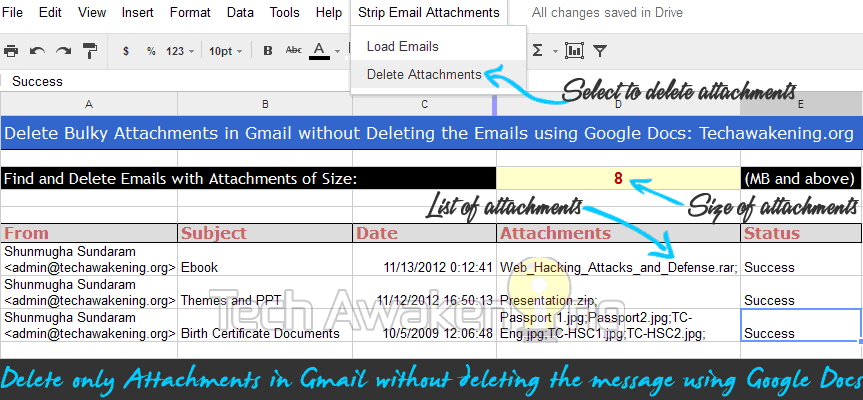
1. You specify the size of the emails to be found in Megabyte.
2. All emails with that or above that size are retrieved and shown.
3. On select of delete all, those emails are processed.
4. All attachments in the message are backed up in your Google Drive under the folder name Gmail_Attachments. So they will remain safe there you can refer them whenever needed.
5. Copy of email body is created and it is sent as a new email to your account from your own ID.
So is the time stamp and sender details of original message lost?
No. They are fetched and appended to the new email copy. Details like date, from, to, cc are retained.
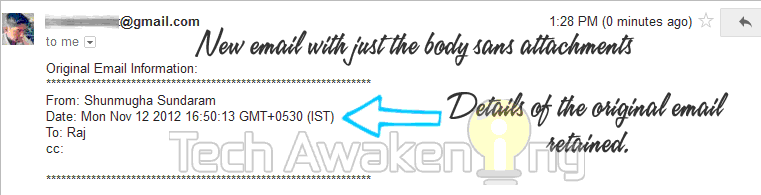
6. Finally original email along with the attachments are trashed.
Delete Attachments Only in Gmail without Deleting Emails with Google Docs
1. First log-in to your Google Docs account.
2. Make copy of the spreadsheet by clicking here. Then click Yes, make a copy.
3. Wait for sometime for the menu Strip Email Attachments to appear just next to help menu.
4. Now mention the size in cell D4 and select Load Emails from the menu. Click OK in authorization popup then click on Grant access followed up by close. Again select load emails and wait for sometime. All email of that size and above it will be fetched and displayed.
Note: You shouldn’t manually edit the sheet, selecting emails isn’t supported yet. So all emails in the list will be processed as such.
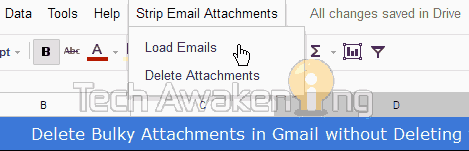
5. Once it’s done,select delete attachments from the menu. That’s it. Now sit back and wait for sometime while all messages are processed. If everything went well you will see success in status column. You will also be constantly updated with ongoing process status via messages at right bottom of your screen.
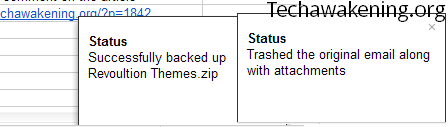
6. Finally check your inbox if you have got all the emails with just body sans the attachments and check Google Drive to see if all your files are there. Trash folder will contain all the delete messages.
Video Demo:
– Forwarding multiple emails at once in Gmail
– Get free SMS alerts whenever receiving new emails on Gmail
Did it work out for you? Or any difficulty to follow the steps? Feel free to drop in without your suggestions or queries. In case if you have found any bugs do report it. Cheers!
I mainly used gmail for all mailing purpose, I love all the features of gmail, this one is also great, bcoz some time we need to forward some mails without attachment…
Yes. Very true! 🙂
Hello,
Many thanks for the post, sounds very interesting but didn’t work for me. I got error “TypeError: Cannot read property “length” from undefined”. I don’t know if it could be a problem of language (Spanish gmail account on a French computer)… Any ideas?
Can you please tell me when did you get this?
On selecting which option? Load Emails or Delete Attachments
Note: In first place did you mention the size in D4?
Hello, thanks for your help!
I did the following:
1. Log-in on Google Docs
2. Copy the spreadsheet
3. Enter “10” in D4
4. Click on “Load Emails”, got the error message
I have tried again in a different computer (now Spanish Windows 7, before on French Windows XP) with different browser (now Chrome, before Firefox), and I have the same error.
Ideally it should work. I tried to replicate but it worked for me. OK did you authorize and grant access? The first time when you click Load Emails there would be a pop up did you get that? Also do you have a normal Gmail account or Google Apps account?
Yes, of course. First time I click on Load mails I had a pop up, and I granted the access as required. The mail I am using is a normal Gmail account, but I also have a Google Apps account, I will try later on this one also and let you know.
Félix
Well. In that case we need to debug. I will send you updated code snippet with some alerts in it to your email along with instructions is that OK for you? Will we continue our discussion there?
Please try this. Go to Tools->Script Editor then select all and delete the entire code. Paste the code available at
http://img.techawakening.org/2013/01/delete_gmail_attachements.txt and save it. Now as before select Load Emails. You would be getting series of alerts. Just note them down and let me know.
where do I get “Strip Email Attachments” for my gdocs spreadsheet?
It will be just next to help menu.
When I open up gmail drive and launch Excel. Its not there. I have data tools add ons and help menu ONLY.
NO “strip email attachment” Under add ons I did a search for “strip email attachment” and it did not find anything there either. Ideas??
Just copy this sheet, wait for sometime you see the menu next to help at the top.
This is excellent, Shunmugha! Much better than doing it via Thunderbird.
Two suggestions:
1. The script is creating an email copy for each extracted attachment. We need only one. Put the trash action outside the attachment loop.
2. It’d be good to keep a link to the attachments in the newly created email. That’s what Google should do but is not doing because that would defeat the purpose of offering their freemium model.
Cheers,
WisdomTooth
Thanks for your words and awesome suggestions! Would try to incorporate them soon. Meanwhile please do share this article on social networks if you liked it 😉
The tool works but not quite as I had expected. apparently it loaded my ENTIRE mailbox, At least those above 5 MB I think a preset ? (did not do the size bit first). I noted that, so in the spreadsheet I deleted the rows of all other mails I did not want processed and selected delete attachments. And guess what – The script deleted all attachment in all emails in the entire mailbox, hence there is not a (proper) link of the mails you see in the spreadsheet and those mails the script has (secretly) selected – this is a serious shortcoming !. And could I find in time how to stop this script – Nowhere to be found, even killing the tab with the script had no effect. Please please tell us (big fat red button) how to STOP and how to DELETE the script
Now I am not amused anymore (mildly put) and blame myself for not having a backup copy before I started this.(this is a suggestion – how do we do that ?) Any way to return to the situation before would have been welcome. Another issue is that I do not like that the email with the deleted attachment is sent again and appears as a “new” email – it screws up the date of where it resides in the mailbox (no longer under the original date) and more importantly you cannot directly reply anymore to the original sender as the sender is now in all cases myself… That is another shortcoming – surely there must be smarter ways… . Lastly as another gent noticed – an original mail with severa;l forth and back history is split up in its parts and sent back to me as individual mails – That is quite unwanted too.
So in all a powerful tool (too powerful…)but it needs some serious refinement. Regards
JeffreyG,
Thanks for your valuable feedback!
– Script ideally will only search and filter emails based on size you entered not the entire mailbox.
– Selecting which email to be processed from Spreadsheet is not supported that’s the reason it considered all the emails. The Spreadsheet just gives you a view.
– Certainly you need not worry about backup because script internally creates one in your Google Drive please check Gmail_Attachments folder. Moreover they are still in your trash to be recovered.
– When creating a email copy it will be sent as a new email only. The problem of original date getting messed up is addressed by embedding them inline in email. You can still search the email with the original date and you will be able to find the mail.
But surely will try incorporating suggestions you made. But sorry to say that most of them are currently not possible because of the limitations of Gmail API.
Again Thanks for taking your valuable time to share your views 😀
After Load Email, if I delete the row with determined email I prevent this email to have the attachments deleted?
Pedro Failla,
Sorry, that feature is not supported yet. It will process all emails by default.
Thank you for the app, I got the following error:
Exceeded maximum execution time
Cabdouch,
When running the script or ?
Got the same here after doing this on 10MB mails (about 23 mails to process). It stop with this exact same message “Exceeded maximum execution time” at the 14th mail.
Just to add something: By clicking again on “Load emails” and doing the delete again, it finished to process the remaining till the end 🙂 Thanks man !
Philippe,
Cool! Do share this article & about this tool on Social Networks,if you found it useful 😉
Thank you for the script.
When we click Load Emails again, it’d be nice if the previous filled rows from row 8 and on are cleared. It is confusing because I have 10 years of emails I want to process. I get the “Exceeded maximum execution time” but have re-running the script manually with success.
I am doing in this preparation for an imapsync (IMAP e-mail migration) from one Personal gmail account to another Personal gmail account.
Sun,
Welcome! Thanks for the suggestion. Will try incorporating them. And do share this article if you found it useful 🙂
Thanks for the great addition to a much needed feature of Gmail. I have used Thunderbird’s manual process for years but it requires the following steps:
1) Select the email message within Thunderbird. Click show headers. Copy subject.
2) Find the message (usually manually searching via subject) in web browser for gmail.com.
3) In Thunderbird, go to File, attachments, save all (then choose the path to save)
4) In Thunderbird, go to File, attachments, delete all. The message is either still selected or gone from Thunderbird view (if sorted by size)
5) Go to web browser, search again. Normally it may take a minute or two to update (independent of network speed). It should then show an additional message in the thread.
6) When an additional message number is in the thread (i.e., went from 5 to 6), expand the thread. One message will have the attachment, another will have the attachment shown with 1k size and with filename prefix of “Deleted: “.
7) Delete the email in the thread with the original file (not the one with “Deleted: ” file prefix.
8) Go to step 1 and continue until you’ve regained enough space to call it quits.
9) After you’re done, go to trash, empty trash
What a pain!
The method here doesn’t preserve the original thread or the original date of the email. The process with Thunderbird does, however. Is there a way to make your script emulate what Thunderbird is doing here? That would be ideal and far better than the manual Thunderbird process above. I tried IMAPSize but it isn’t supported since 2008 and I don’t think it does the same as Thunderbird (but I could be wrong).
Thanks!
would it be easy to implement an option to, say, restrict selected emails by attachment type? I’m really only interested in deleting encrypted/zipped data files…*.7z or .ZIP, i’m happy to keep the pictures and mp3s…i’m not worried about space, but about security. I’ll delete the problematic files out of the storage folder as we go!
thanks
bob.
*and…is there a flag to keep allow a longer “run time”? I’m timing out after 40-50 messages out of 1000s
Ya it’s possible you must tweak the search query. As far as max execution time it is controlled by the system.
Thanks SO much! This is awesome!
Is there a way to exclude an email or two that I don’t want stripped?
Jonathan,
You are most welcome. Sorry current version of the script does not support it 🙁
Please do share this article if you liked it!
Great script. However I keep getting this message: Exceeded maximum execution time.
John,
Thanks 🙂 May because of large number of attachments or file size.
OK. I can work with that.
However, now I am getting an error that states I have exceeded the max amount of emails…
Great idea for a script / app. Was wondering how it’s coming along, have you worked out a lot of the bugs?
Thank you for this info – however, did you know google docs storage counts toward your 15 gb and doesn’t help – what DOES help is DELETING YOUR TRASH FOLDER! I found this in gmail documentation, and it says trash counts toward your allocation. After trying to run the script for several times and timing out, I did this research. My gb’s went from just under 15 to 4.5 in a flash! Although the folder says it gets emptied every 30 days, don’t believe it, just go and do it yourself.
Mirri,
Thanks for your valuable inputs. Hopefully it should help others too. Actually believe when I wrote the script the available storage wasn’t shared across Google apps this may be a new change possibly.
Fantastic. I had exhausted my storage, and was breaking my head on how to delete attachments without deleting the email. This solved it.
Thanks.
Karthik,
Appreciate the feedback! Do share/like this article if it helped you out. Cheers.
Thanks for making this!
One problem: when I search in Gmail for has attachment over 7MB, I get hundreds of results.
However, when I run the script in this doc, I get only about 80 results.
Is this a bug?
You are most welcome!
No that’s not a bug but a limitation. Sheet cannot handle that many emails so you are shown limit number of results per sheet.
Do spread the word about this article if you liked it, would appreciate it. Cheers!
Any way to get around that limitation?
Anyhow, thanks a lot for this tool!
We can increase the limit but doing so will cause system exceptions often.
very smart tool. thanks.
I would like to request that inline images also be downloaded before removal.
You are most welcome. Happy to know that 🙂 Thanks for the suggestion! Do spread the word on social networks.
Thank you for this tool but I am having an issue with it. I am a google docs user. I selected for 5MB e-mails to be removed but it did more than that. I have one file that 3.7MB and it is set for deletion. I have a bunch of others also but justed used that one as my example. Any suggestions on how to proceed?
You mean to say that you set to delete 5MB email but it also deleted an email which was of size 3.7 MB?
Yes, it seemed to select all e-mails with attachments, not just the ones with 5MB or larger attachments.
That shouldn’t be happening. Script internally uses Gmail Search, so try searching your in inbox like this “size:5mb” the result you get and the result what script showed should match.
hey, great service you’re doing here. anyhows, just a question- when i just run the script, if the attachment is part of a mail that contains several back&forths, it’ll send me each of those back&forths as a seperate e-mail, which is a mess. i wonder- if, after i load all the emails to the docs, i’ll delete all the rows that contain just the back&forth that include the attachment, it’ll save the rest of the mail?
Oren,
System does not allows to process an email thread together instead you can process then only as individual messages. Hence this behavior. Also you should not be modifying the sheet manually once it’s load.
Will try adding feature soon that will allow you to delete mails selectively.
thanks!
I received:
Status Error EncounteredException: Service invoked too many times for one day: email.
What is the limit here? Is there a way around it?
Great script!
Yes, all operations have their own quota limits: Quotas for Google Services
Wait out a day and try the next day 🙂
Is it possible to alter the script so that sizes less than 1 MB can be the minimum?
Thanks.
You mean 1MB and above? That would require little code customization.
How would I change the code if I wanted to find all attachments that were 500 KB and above. Would that be possible?
Effing brilliant, really.
Any chance you could add the ability to choose a date range, so I could choose to eliminate the attachments only on those emails sent or received up to / between specific dates?
I will def share this!
Thanks again!
Thanks a lot! Yes, very much feasible. For customization do write to admin@techawakening.org. Please do share 🙂
So I was just running this (it’s the second time I’ve tried it – the first was back in November). It seemed to be running fine until I exceeded daily quota, as others have mentioned above. Nothing you can do about that, obviously.
That being said, a couple issues:
1) I thought this was supposed to retain the original e-mail date/time? It seems to have created all new e-mails with today’s date/time. Am I incorrect about that?
2) This script transfers the attachments to Google Drive, as intended. I then went into Google Drive and deleted them (and emptied the trash). However, despite this, it doesn’t look my space usage has gone down. Am I missing something?
OK the data usage did actually update eventually, so #2 is irrelevant. #1 is my only remaining question.
Daniel,
Yes, it creates a new email which I have mentioned in 5th point under how does this work section.
Well done – thank you so much!
OK – it has some limitations, but it’s the best working solution so far – which is a little bit embarrassing for Google not to provide their own full working solution.
My pleasure 🙂 Please do spread the word.
Wow! Thank you so much!
Pleasure is mine. Please do spread the word 🙂
this is a good tool.
Similar to the “size” on D4, can you please add a search string so that I can find some emails to delete ( as an additional filter ).
Hey, great script. Some comments.
1. I would edit the main article and mention the fact that the script can time-out which requires you to load emails again and that there is a limitation on the amount of emails per day.
2. Because my gmail was already almost on the max I ended up with duplicates.
Your script trashes the original attachments and creates copies in the gmail_attachments folder in drive so this initially increases the data in your storage. When I ran your script, my storage limit was reached and therefore no more copies of the attachments could be created. That’s why today, when I ran the script again because of the day-limitation I ended up getting duplicates of files that I already backed up from the gmail_attachments folder. At least, I think that’s the reason.
The only other downside, but it’s a minor one, is the fact that the emails get resent and appear at the top of the inbox. Perhaps there can be some sort of archive function that puts those emails in an archive folder in gmail? I don’t know if you can create a script that allows that much control over someone’s gmail account.
Otherwise, great script!
Gaspard Bos,
Thanks for the awesome feedback, appreciate it. Will consider these when releasing the next version 🙂
I’m getting a new error now that didn’t occur before.
After loading emails and selecting “delete attachments” I see this:
ReferenceError: “DocsList” is not defined.
Should I perhaps make a new copy of the excel sheet?
Thanks for report, DocsList recently got deprecated. Will push-in fix soon.
ReferenceError: “DocsList” is not defined.
I get this error after doing “delete attachments”. Any ideas?
Soooo close !!
Ah I have just read:
https://developers.google.com/apps-script/sunset
Sad. DocList is sunset. Is there an alternative?
http://techawakening.org/delete-attachments-from-gmail-without-deleting-the-emails/1842/#comment-27004
I used the script before and it worked well. I tried again but I received the following error ReferenceError: DocsList is not defined. This was after I selected Delete Attachments. It loaded the emails but could not delete the attachments because of error.
http://techawakening.org/delete-attachments-from-gmail-without-deleting-the-emails/1842/#comment-27004
Looking forward to the fix… really appreciate you working on this!
Fixed. Please give a try now by copying the new sheet.
I got the same error message as a couple of other script user:
Reference Error: “DocsList” is not defined. Please help.
Fix coming in soon.
Thanks! I can’t wait to see if this can be fixed. And yes, if there’s a way to select which emails to process, that would be awesome too.
That said, I’m super impressed with your solution!
I got the same error that others have been getting.
Working on a fix. Will keep you posted!
Fixed. Please try now.
YES! The script is working fine again. Good job 🙂
Good to know! Do spread the word.
I tried this and it deleted my original emails, made copies and put them in my inbox. Before I clicked “delete messages” I removed some of the entries from the spreadsheet that I didn’t want to delete, but the program deleted them anyway. Now I’ve got an inbox with 137 new messages. Definitely not what I expected to happen. I wouldn’t recommend this to anyone.
Michelle,
There was enough discussion on this topic that you should not edit the sheet manually once it is loaded, may be you should have gone through. And you can always restore them from trash.
http://techawakening.org/delete-attachments-from-gmail-without-deleting-the-emails/1842/#comment-6135
http://techawakening.org/delete-attachments-from-gmail-without-deleting-the-emails/1842/#comment-24410
Hi,
Can we able to delete the attachment from sent mail or only inbox mail? if yes please let me know.
Thanks,
Chirag
Script makes a generic search based on size. So sent folder should be included as well.
Please read the how to section, to better understand how the script works. Thanks.
This is brilliant. Thank you SO much!
Thanks Lynn! Do spread the word.
If you liked my work, do consider buying me a coffee: http://techawakening.org/go/donate 🙂
Can delete only specific email attachment?
That feature will be available only in next version.
Oh Thank! that is great! I looking forward to it.
Hey, thanks for the script! I am trying to use your tool in concert with the Android app “SMS Backup +”, to batch remove the attachments from the MMS on my phone.
I haven’t done all of it yet, but I’m thinking it will work like so:
1. I have already installed and used SMS Backup + to copy my SMS/MMS to gmail. In that process, the app applies an “SMS” label to them, and designates all those with Attachments as “important”.
2. So I need to be able to add the operators “label:sms” and “is:important” to your search parameters (or to be able to designate which emails are parsed)
3. Delete messages from my phone and then use SMS Backup + to “restore” the messages (attachment-free) to my phone.
Can I add those operators by editing this script? Where would I put them?
You would need to refine the search in the script. Select Tools->Script Editor to edit it.
This should be of help: https://support.google.com/mail/answer/7190?hl=en
Thanks for the reply/tip. I understand how the operators work when searching with gmail’s search feature. However, I don’t know code well enough to understand what/where I would put those operators when editing the script.
For example, I am thinking I could change line 269 to read:
var threads = GmailApp.search(“label:SMS”, “is:important”, “size:”+size_byte, 0, 50);
Is that coded correctly?
Hi Sham,
The script is well done. I have a question about the authorizations.
Google says the script needs permissions to:
– view and manage my email
– know who I am on Google
– view my email address
– view and manage my spreadsheets on Google Drive
– view and manage the files in Google Drive
So if I run the script, I have pretty much given away all permissions to everything important.
Since I can’t see the script I don’t know if I’m giving these permissions to the script copy which I ‘own’, or to you/Techawakening.org.
Can you explain how the permissions work, or refer me to where in Google it’s explained?
Is there a way to review the script to see what it does and if it is safe, in terms of permissions?
Thanks,
Louie
Hi Louie,
Thanks! The script is entirely owned by you, since you are making a copy it and running it in your account. So script does need all those permissions to work but in-turn that script is owned by you and not Techawakening.org, so we don’t have any access to your data. And code is open-sourced, feel free to have it reviewed by anyone 🙂
https://developers.google.com/apps-script/guides/services/authorization
Regards,
Sham
The program ended with an error stating max time exceeded. Otherwise seemed to work well.
Nice
Thanks! Will be upgrading the script for better error handling 🙂
Loved my work? Buy us a coffee: Techawakening.org/go/donate
working beautifully as we speak. will share widely.
Thanks.
Good to know. Please spread the word. Have a great day!
This little script is a huge time saver and makes my life much easier. I do get the error that I’ve exceeded the number of times I can run it in one day. This can even happen if it is the first time I have run the script in weeks. I’m not sure how to solve that issue. Thank you for this tool. Amber
Nice tool, I’ve translated it to spanish and you can get it from https://docs.google.com/spreadsheets/d/1DSjJ1BOlHx1DB3TUV8X0ltxUV5_tQ3UPM_e8EvKiaUM/edit?usp=sharing if you want
Thanks for the share!
Will you ever modify the program to allow selective delete of messages? I have specific ones I can filter out that I would like to separate the attachments from, but the only choice I have is to remove everything!… Otherwise great work btw 😉
Hello,
Great tool.
I get a message ” Service invoked too many times in one day” and script will now not run.
Suggestions?
Thanks for the great utility — is there any way to have the script put the filenames into the new stripped email, so if you needed to refer to the original file you could find it? Presumably many of the files would have been downloaded when the email was received…
-g-
It’s very much possible. Please write to admin@techawakening.org for any custom needs.
Is it possible to run this script for whole emails? I get results only from last 40 days.
Hi
This is very interesting tool, but the spreadsheet as for:
View and manage your mail
View and manage the files in your Google Drive
Know who you are on Google
View your email address
View and manage your spreadsheets in Google Drive
View and manage data associated with the application
What are the privacy risks ?
Thanks
All data are accessible only to you. We don’t have any access to your data.
I get an exception saying Service “Email” invoked too many times… I have a lot of emails with >5MB attachments…
Google does only allow a certain number of e-mail activities per day for the free accounts, but can’t remember the limit, but it’s there.
Does this mean 24 hours? Cause I get the same error message even after trying the next day… First bulk worked for me.
Also – What would be useful is to have the file name of the original email attachment in the email copy without the attachment. In that way you can at least file the files on google drive..
Sorry if this was already suggested before.
Having a few issues.
1. GOOD! The files are being added to a Gmail_Attachments file
2. OOOPS! Not updating STATUS field
3. OOOPS! Not deleting the source emails and replacing them with emails from ME
4. OOOPS! Received and error that “DOCS NOT AVAILABLE” ?
It has been helpful! Thanks1
Hi Shunmugha Sundaram,
I cleaned up and debugged your code and added an extra filter option.
Most important fix: Only messages with attachments (greater or equal than the specified size) are added to the sheet instead of all messages in a thread wherein 1 such message resides.
If you are interested I share the gsheet with you.
That’s great! Please do share it.
Hello Dieter,
I’m interested by your fixes, can you share your sheet ?
Thank’s
G.A
Please share the new gsheet with the World, Dieter and Shunmugha!
Have you seen this?
https://stackoverflow.com/questions/46434390/remove-an-attachment-of-a-gmail-email-with-google-apps-script
Hi Great tool works great. Is there anyway that instead of saving the attachment in gmail_attachment folder the attachments can be save in a folder that is named in the Subject field of the email
Thanks
John
Thanks, Shunmugha! It is an awesome script and idea, Worked fine for me.
Good to know. Please spread the word.
Why I am receiving security warning
“This app isn’t verified”
Hi! Thank you and congratulations for your tool, useful!
However, the point is if I wish to delete only OLD attachments, let us say those older than 1, 2 or whatever years (the latest one might be useful…), how to do it?
Is it possible to specify a date range for the script to operate?
Many many thanks
Shunmugha, Thank you for the useful utility. I get the “Unverified App” warning message from Google when I try to use it. Can a verification request be submitted so that the error message doesn’t pop up every time it is used? Reference – https://support.google.com/cloud/answer/7454865
Is this site reputable? I got the same verification notice.
I ran your script I put in 1M in D4 and it was only able to find 218 Emails. I assure you I have TONNS more emails with attachments. Is this a gmail cut-off date? Because I ran a similar script and it only went back one month not all my emails?! Can you fix this please?
For me it only rendered 100 emails and only went back 3 months. I put in 2mb which gives me 817 when I search it in gmail, and they go back 10 years. I will look at the code, but is there somewhere that it is restricting by date or other criteria?
So the biggest problem with this for me seems to be that the script times out before it does much. I only tend to be able to remove between 10-80 MB of attachments a day.
It also destroys e-mail threads, pushing them into individual e-mails, but I can live with that.
Beyond that… is there a way to have the deleted/recreated e-mails show the names of any files deleted from them? I often need to know that filename.pdf was deleted from a given e-mail.
Despite my problems, though, this is still the best solution I’ve found to this glaring problem with gmail.
Shunmugha Sundaram, I just want to leave a giant THANK YOU. I’m a designer so I send MANY emails with attachments in 15-20mb range, and I really didn’t want to buy drive space. While I don’t love that my email threads are getting a little jumbled, I can totally live with it because HELLO NO MORE MANUAL PROCESS. Thank you again, this has been a huge time saver for me!
Faith,
You’re welcome. Please share and tweet and spread the love 🙂
Shunmugha Sundaram
I tried your instructions but, it only duplicates the emails with attachment.
If I delete an attachment that I emailed to someone a while ago, using this script, will they still be able to download the attachment or will they get a warning that the file doesn’t exist anymore?
Love this! Works great!
It’s possible to enter a non-whole number into the field, but it’s unclear to me if this works properly.
Love this! Works great!
It’s possible to enter a non-whole number into the field — e.g., 9.9 — but it’s unclear if this works correctly. Can you advise? Thanks!
[…] this Google Docs script, it worked for me. It does not require installing […]